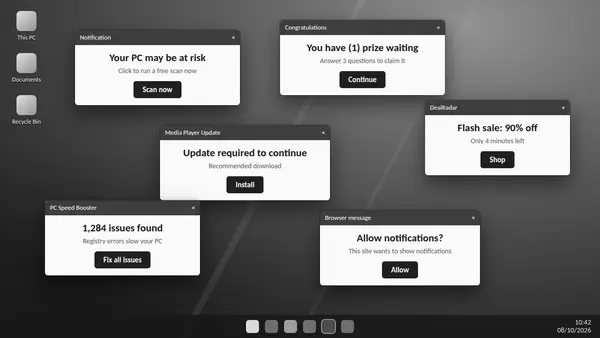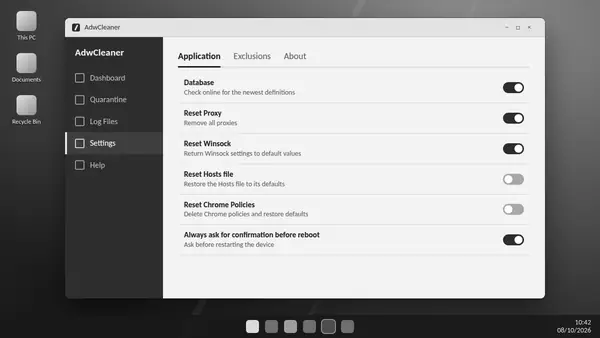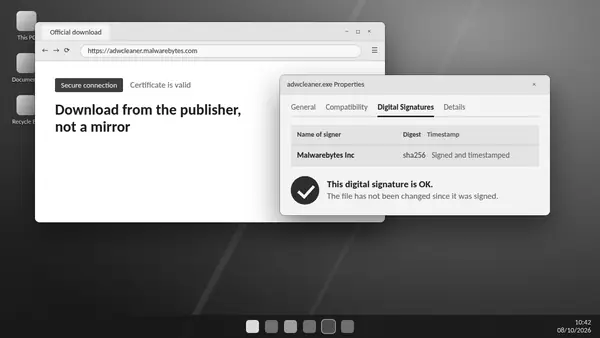
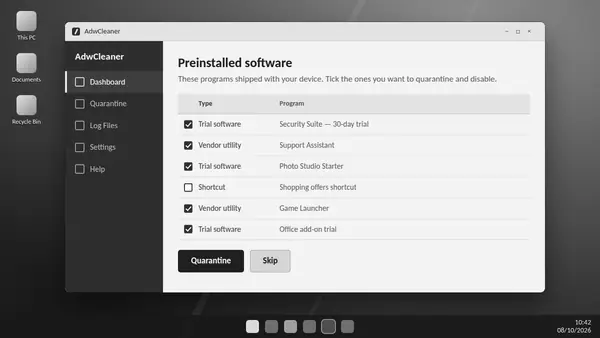
A new Windows PC may include trial applications and manufacturer utilities you did not choose. ADW Cleaner can identify supported preinstalled software, helping you review optional extras without treating every vendor application as a threat.
Useful utility or unwanted extra?
Trial subscriptions and promotional applications can be unnecessary. Other manufacturer tools manage updates, audio, batteries or device controls. Decide what each application does before removing it; an unfamiliar name alone is not evidence of adware.
Review the separate detections
ADW Cleaner may show preinstalled software after its main scan results. Selection is your decision. Check the vendor, purpose and whether you use the application, then quarantine only the extras you want disabled.
Prepare for the change
Save work and retain a record of the selected applications. Finish any requested restart, then test the functions you rely on, including sound, keyboard shortcuts and manufacturer update tools.
If a useful feature disappears
Review the quarantine entries and cleaning report to identify the related utility. Restore a confirmed trusted item when recovery is available. If needed, obtain the manufacturer's current software for your exact PC model.
When Windows uninstall is enough
A normal application with a working uninstaller may be removed through Windows settings. ADW Cleaner is useful for recognised unwanted software and associated traces; it is not a universal debloating tool or a reason to remove drivers.
Keep the clean-up deliberate
Review new trial offers and bundled extras as they appear. A smaller set of applications is easier to maintain, but stability matters more than removing the largest possible number of items.