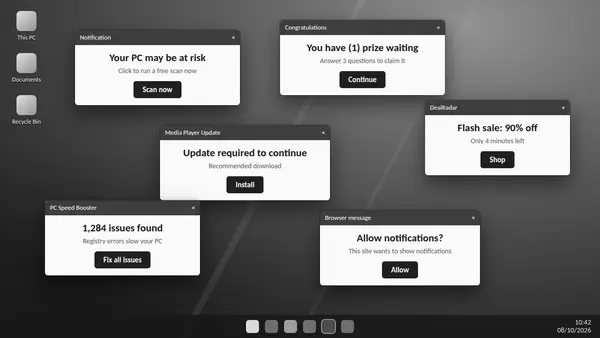
Windows pop-up ads can come from website notifications, browser extensions or installed adware. Identifying the source first avoids unnecessary system changes and helps you decide whether an ADW Cleaner scan is relevant.
Website notifications
A notification that names a website may come from permission granted in your browser. Review the allowed notification sites and revoke permissions you no longer want. A notification can appear even when the main browser window is closed.
Browser extensions and injected ads
Unexpected advertising inside web pages can be associated with an extension or unwanted application. Review recently added add-ons and remove those you have checked and no longer trust. Ordinary advertising on a website is not automatically a sign of infection.
When ADW Cleaner can help
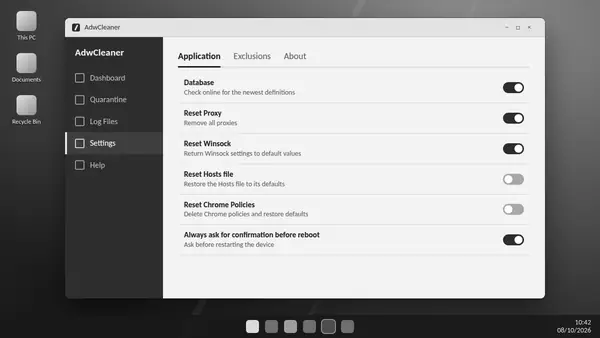
Persistent advertising alongside unwanted software or changed search settings warrants investigation. ADW Cleaner checks for supported adware and related traces. Review detections before quarantine and save work before a requested restart.
Separate Windows suggestions from adware
Windows and legitimate applications may display tips or promotional messages. Their notification preferences control these messages. A recognised product notification requires a different decision from a deceptive warning produced by an unknown source.
Handle suspicious alerts carefully
A web page claiming your PC is infected is not a reliable security diagnosis. Avoid downloads, payment requests and phone numbers promoted by the alert. Close the page or application using trusted system controls and investigate with your own security software.
If pop-ups return
Check notification permissions, browser sync and recent installations again. Compare ADW Cleaner logs for recurring entries. Symptoms that persist after focused cleaning may require broader anti-malware investigation.