ADW Cleaner log files turn a scan into a useful record. They help distinguish what was detected from what was actually cleaned, making recurring adware problems easier to investigate.
Where reports are stored
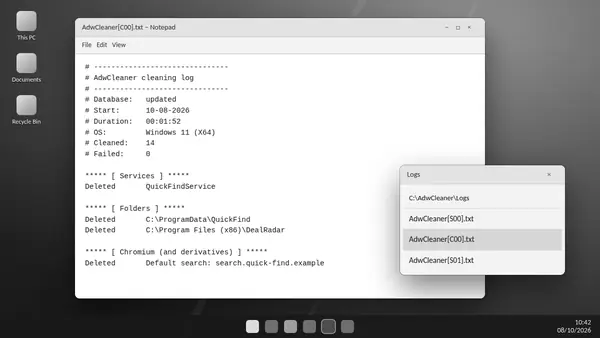
The Log Files area provides access to reports. The usual working directory is C:\AdwCleaner\Logs, although the location can depend on the release and configuration. Save a copy before removing the utility's data.
Scan reports and cleaning reports
A scan report describes detections before cleaning. A cleaning report records attempted actions and their results. Common filenames use S for a scan and C for a clean-up, followed by a run number. Confirm the date rather than relying on the filename alone.
Start with the header
Program and database details, timestamps and Windows information give the report context. Check that you are reading the relevant run and whether detection updates were available. An older report may not describe the PC's current condition.
Read detections in context
Entries may be grouped under files, folders, services, tasks, registry data or browser settings. A detection name identifies a classification; its location helps connect it to installed software. Potentially unwanted software requires a review of whether you use and trust it.
Compare repeat scans
An entry that returns after cleaning may have another source, such as an installed application or browser sync. A failed action needs further investigation rather than an assumption that the item was removed. Compare names, paths and timestamps across reports.
Protect information before sharing
Logs may contain usernames, device details and file paths. Review the entire report for personal information before posting it publicly. Share only what is relevant with a trusted support channel; detailed debug logging is best reserved for a specific support request.