Unexpected search redirects and a homepage that refuses to stay changed can point to a browser hijacker. ADW Cleaner checks for supported unwanted software and related traces that may be responsible for those changes.
Recognise the symptoms
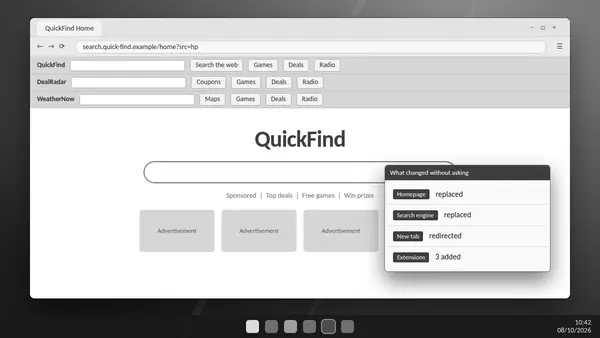
Common signs include unfamiliar search providers, newly added toolbars and extensions you did not approve. A managed-browser message can also deserve investigation on a personal PC, although legitimate workplace policies may produce the same message.
Look beyond the browser
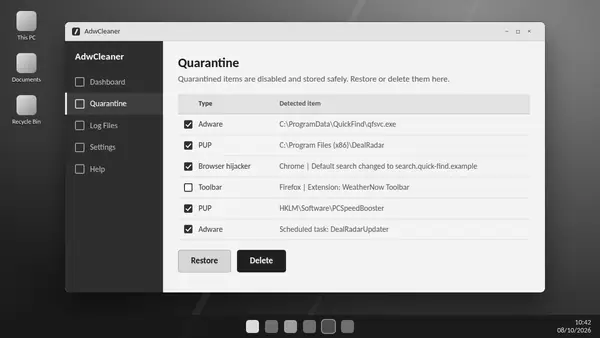
Removing an extension may leave an associated application, scheduled task or policy behind. These components can recreate the unwanted setting. A focused ADW Cleaner scan helps identify recognised traces across more than one location.
Review before quarantining
Close your browser and examine the scan results. Check unfamiliar entries against their names and locations, then quarantine the items you intend to remove. Avoid changing organisation-managed policies without checking with your administrator. Save open work before a requested restart.
Check the settings you actually use
After cleaning, review your homepage, search engine, extensions and website notification permissions. Browser synchronisation may bring an unwanted add-on back from another device, so check other devices connected to the same account.
Investigate recurring redirects
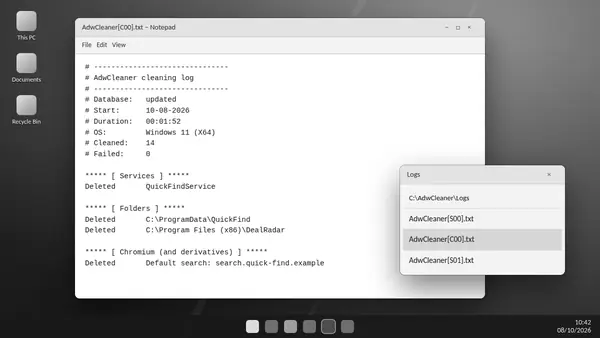
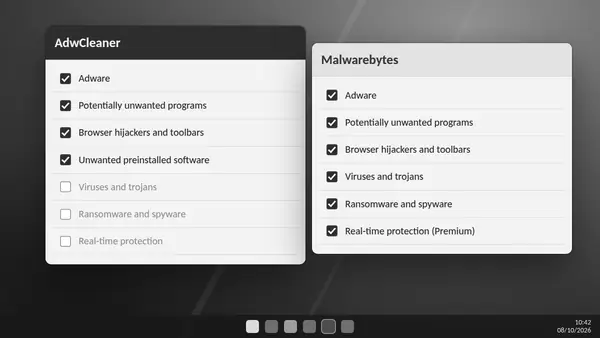
Compare successive ADW Cleaner logs and review recently installed applications. A repeated detection can indicate a remaining source of unwanted software. Persistent redirects after a clean scan need broader investigation, including a full anti-malware scan where appropriate.
Reduce future exposure
Obtain software from its developer and review bundled offers during installation. Keep only extensions you recognise and need. These habits reduce common entry points for browser hijackers.